I’ve followed LA artist Chris Natrop for a couple of years. He makes stunning 3d installations often featuring cut paper.
Below is an image from his 2007 Pulse New York booth. Gorgeous! I’d love to see his pieces in person.

I cut paper with lasers
I’ve followed LA artist Chris Natrop for a couple of years. He makes stunning 3d installations often featuring cut paper.
Below is an image from his 2007 Pulse New York booth. Gorgeous! I’d love to see his pieces in person.
I’m lucky to have a friend who’s incredibly passionate about energy consumption. It makes me think about how my business and my family can reduce our draw. Since we have a baby in cloth diapers we start out pretty poorly — the washer, dryer, and dishwasher are run every day. We’ve made three recent changes to help our impact.
1. Replace the thermostat with an ecobee. I love our programmable thermostat. It makes it dead simple to keep the heat off or low when we don’t need it. Best of all, there’s an iPhone application so that when we’re out of the house we can remotely turn off the heat. It feels like the future when I can check the temperature of the house when I’m not inside it.
2. Go car-free. We were living “car light” for several years; we both used alternate forms of transportation to get to work. Portland’s public transportation is generally good and there are three Zipcars in walking distance from our house. We decided to sell the car and budget the money we would be spending on insurance for car rentals. Three months later, our son is much happier on the bus than strapped in his car seat, we don’t have the hassles of car ownership, and we get more fresh air! We’ve also successfully used Zipcar for a middle-of-the-night urgent care visit.
3. Sign up for energy offsets. Portland’s energy company, PGE, has a great program where you pay a bit extra to have your electricity offset with renewable energy. I like this program since it’s clear where the money is going. Most of the renewable source comes from wind. Who doesn’t love that? My laser was the motivator for signing up for this program. It doesn’t consume a huge amount of power, but it’s enough to make me conscious of it. I did some tests with a Kill A Watt with these results:
ULS 4.60 50W laser cutter
17W plugged in (“vampire” cost). The laser has a dedicated power outlet controlled by a switch, so I try to remember to turn it off.
86W turned on but not running
115W – 880W running – since it’s unusual for me to cut anything other than paper my actual usage is at the bottom of this scale. The few times I’ve cut acrylic or thick matboard I’ve had to crank up the power.
Quatro SPH-426 exhaust
107W – 128W. Again, this is normally at the lower end of the scale since I don’t need to run the exhaust at 100% when I’m just cutting paper. Since the exhaust is partway across the room I always turn it on and off via the dedicated wall switch, so I didn’t measure the vampire draw.
Up next? Insulating the garage and having a “blow test” done on the house.
 Geogrotesque Stencil is the first font I’ve found that has different bridge widths for the same font size. I highly recommend this font for physical applications such as laser cutting. The bridge is the line that connects islands (typographic closed counters), for example the middle of the “o” or “a” that would fall out if they weren’t bridged. Most stencil fonts play it safe with fat bridges. Once the font gets to a certain size the bridge stands out and is wider than necessary to physically hold the island in place. With a choice you can get a nice balance between the bridge width and the font size.
Ideally the bridges would be parameterized so that I could adjust them the same way I can adjust leading or other type properties.
After some experimenting these are my recommendations:
Geogrotesque Stencil A for 60pt+
Geogrotesque Stencil B for 24pt – 60pt
Geogrotesque Stencil C for 14pt – 24pt
Below 14pt the islands fall out (65# paper).
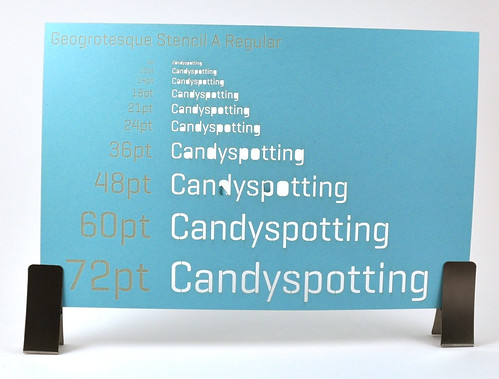
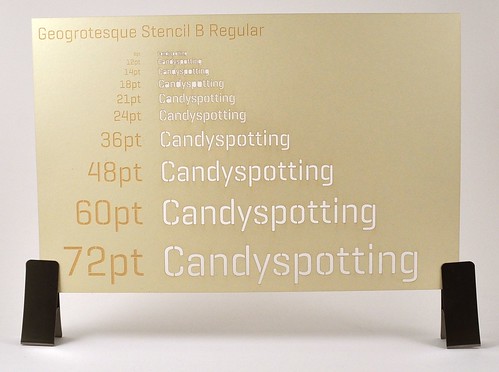
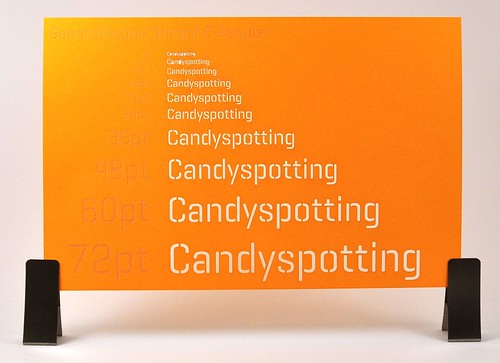
2010 calendars featuring Geogrotesque Stencil are available in the shop. Convo me on Etsy if I don’t have any listed and you’d like one :).
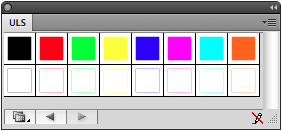
Here’s a set of graphic styles you can use in Illustrator to take full advantage of the ULS print driver.
The top row of styles is for etching, the bottom for scoring and cutting. Once the job is in the ULS Control Panel you should see the same colors that were used in the document. If everything displays black instead, double check that the document is using RGB (File->Document Color Mode->RGB Color). If it’s not, change it to RGB and reapply the styles to the document.
When testing a new material I use every color to test as many settings as possible at once, like so:
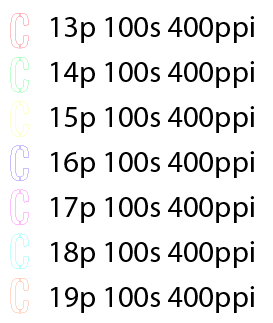
Rastering the setting numbers takes extra time but it creates wonderful documented samples.